Unlocking the Potential of Your Favorite Pencil in Procreate
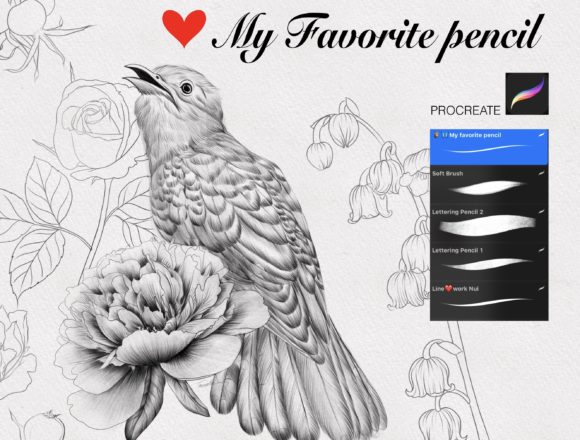
There is a specific kind of satisfaction that comes from finding a digital tool that disappears into the background, leaving only your creativity visible. For many iPad artists, that tool is a custom brush often referred to as the Favorite Pencil Procreate preset. It promises a beautiful, smooth experience that mimics the tactile feel of graphite on paper, transforming the glass screen of an iPad into a responsive sketchbook. However, simply downloading a brush file does not guarantee masterpiece results. Many users, ranging from hobbyists to professional illustrators, stumble over avoidable technical hurdles that prevent them from experiencing the true quality of these tools.
The allure of a brush that feels like drawing is powerful, but without the right setup and understanding of how Procreate handles texture and pressure, even the best assets can feel slippery or unresponsive. To get the most out of this resource, you need to look beyond the download button and understand the ecosystem it lives in.
Verifying Your Technical Foundation
Before diving into stroke settings or texture overlays, you must ensure your hardware and software are actually capable of running these advanced brushes correctly. A common misunderstanding is that any stylus or tablet will suffice. In reality, the Favorite Pencil Procreate brush is engineered specifically for the Apple ecosystem.
To use this brush effectively, your toolkit must include:
- An iPad Pro or a compatible standard iPad model that supports high-resolution rendering.
- The genuine Apple Pencil (either 1st or 2nd generation, depending on your device).
- The Procreate App updated to version 5.0 or higher.
Why does this matter? Third-party styluses often lack the nuanced pressure sensitivity and tilt recognition that the Apple Pencil provides. If you attempt to use a generic capacitive stylus, the "smooth" feeling described in the product notes will vanish, replaced by jagged lines and inconsistent opacity. Similarly, older versions of Procreate may not support the latest grain dynamics or stabilization features embedded in modern brush files. Checking these requirements isn't just about compatibility; it's about ensuring you aren't blaming the tool for limitations imposed by your hardware.
The Trap of Ignoring Canvas Resolution
One of the most frequent mistakes artists make when testing new pencils is working on a canvas that is too small. When you create a new document in Procreate, the default size might be sufficient for social media thumbnails, but it is often disastrous for detailed pencil work. Digital brushes rely on pixel density to render texture. If your canvas DPI (dots per inch) is too low, the grain of the pencil brush will appear blocky or pixelated rather than smooth and organic.
This oversight directly affects the quality of your final presentation. A sketch that looks crisp on a phone screen might reveal ugly aliasing when viewed on a desktop or printed. To avoid this, always start with a canvas size that matches your intended output. If you plan to print your work or showcase it in a high-resolution portfolio, set your DPI to at least 300 before making your first stroke. This ensures the Favorite Pencil Procreate brush renders its texture faithfully, giving you that authentic paper feel without digital artifacts.
Misunderstanding StreamLine and Stabilization
Even with the perfect hardware and canvas settings, many users find their lines wobbly or unnatural. The culprit is often the StreamLine setting within Procreate's brush studio. This feature acts as a stabilizer, smoothing out your hand movements to create cleaner curves. While it is tempting to crank this setting to 100% for perfectly smooth lines, doing so can introduce a noticeable lag between your pencil tip and the appearing stroke.
This lag disrupts the rhythm of drawing, making the process feel sluggish rather than fluid. Conversely, leaving it at zero can make your handwriting or contour lines look shaky, detracting from the professional polish you aim for. The solution lies in balance. For the Favorite Pencil Procreate brush, try setting StreamLine between 10% and 20%. This offers enough correction to smooth out minor jitters while maintaining the immediate response needed for dynamic sketching. Test different values on a scrap layer until the resistance feels natural to your hand.
Overlooking Pressure Curve Customization
A beautiful pencil brush is only as good as the pressure curve driving it. Procreate allows you to customize how the app interprets the pressure you apply with the Apple Pencil. A common error is accepting the default settings, which may not align with your personal drawing style. Some artists press lightly for dark lines, while others bear down hard. If your pressure curve doesn't match your physical habits, the brush will feel unresponsive—either too faint or too dark with no middle ground.
To correct this, navigate to the Actions menu, select Preferences, and then Pencil. Here, you can adjust the pressure curve graph. If you feel like you have to press too hard to get a dark mark, adjust the curve to be more sensitive at the lower end. This small tweak can transform the usability of the brush, making it feel like an extension of your hand rather than a foreign object. Remember, the goal is a seamless connection between thought and mark-making.
Making the Right Choice for Your Workflow
When evaluating whether the Favorite Pencil Procreate brush is right for you, consider the specific type of work you do. Are you creating rough concept sketches, detailed architectural drawings, or soft portrait studies? No single brush fits every scenario perfectly. The mistake here is expecting one tool to do everything. Instead, view this brush as a specialized instrument in a larger kit.
Before committing to a workflow based on this asset, download the trial or preview if available, and test it against your typical projects. Pay attention to how it handles layer blending modes and opacity. Does it stack well when you go over the same area multiple times, or does it turn muddy? A high-quality pencil brush should allow for building up tone gradually, much like real graphite. If it smudges unnaturally or lacks texture variation, it might not be the efficient choice for your needs.
Ultimately, the value of any digital asset lies in how it enhances your efficiency and satisfaction. By ensuring your iPad and Apple Pencil are ready, optimizing your canvas resolution, fine-tuning stabilization, and customizing pressure sensitivity, you eliminate the friction that often leads to frustration. These steps empower you to focus on what truly matters: the art itself. With the right preparation, the smooth, beautiful feel of this pencil brush can elevate your digital illustrations from simple drafts to polished, professional works.